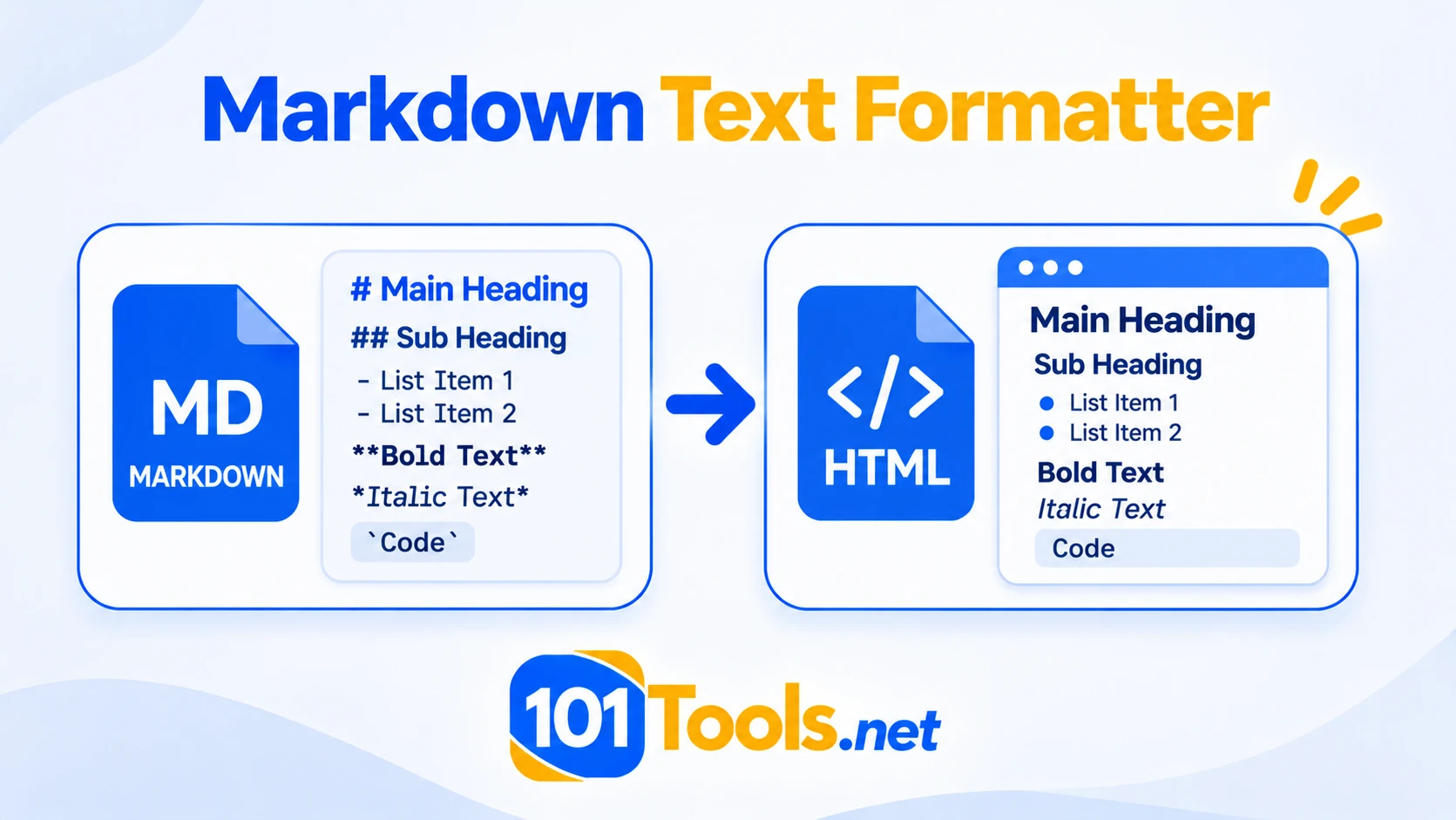
Convert Markdown text into clean, readable plain text with the free Markdown Text Formatting Tool from 101Tools. Remove Markdown syntax, formatting symbols, headings, links and other markup elements without manually editing your content.
Whether you are working with Markdown documents, README files, technical documentation, AI-generated content or blog articles, this tool helps you extract readable text quickly and easily.
Simply paste your Markdown content into the editor, convert it into plain text and copy the result. No software installation or account registration is required.
Loading tool…
Let us know
How useful was this tool? Your rating helps others find it.
No ratings yet. Be the first!
What Is Markdown Text Formatting?
Markdown is a lightweight markup language used to structure and format plain text. It uses simple symbols and characters to represent headings, bold text, italic text, lists, links, blockquotes, tables and code blocks.
Markdown is widely used by developers, bloggers, technical writers and content creators for preparing documents, website content and project documentation.
However, Markdown syntax is not always suitable for applications that require ordinary text. Formatting symbols such as asterisks, hash signs, brackets and backticks can make raw Markdown difficult to read.
A Markdown text converter helps remove these formatting elements and produces clean, readable plain text that can be used in other applications.
How to Convert Markdown to Plain Text
Using the 101Tools Markdown converter is simple. Follow these steps:
- Copy your Markdown content from a document, website or editor.
- Paste the content into the input area.
- Run the Markdown-to-plain-text conversion.
- Review the converted output.
- Copy your clean text and use it wherever you need.
The tool processes your Markdown content and removes supported formatting syntax while retaining the readable information.
Common Markdown Formatting Elements
Markdown uses different symbols to represent document formatting. Understanding these elements helps you identify what the converter processes.
1. Markdown Headings
Markdown headings use hash symbols (#) to represent different heading levels.
Example:
# Main Heading
## Section Heading
### Subheading
When converted into plain text, the heading content remains readable without the Markdown heading symbols.
2. Markdown Bold Text
Bold formatting is created using two asterisks or underscores around text.
Example:
**This is bold text**Plain text:
This is bold text
3. Markdown Italic Text
Italic formatting uses a single asterisk or underscore around a word or phrase.
Example:
*This is italic text*The conversion removes the formatting markers while preserving the text.
4. Markdown Lists
Markdown supports both ordered and unordered lists.
Example:
- First item
- Second item
- Third item
Numbered list:
1. First step
2. Second step
3. Third step
List content can be converted into readable text without Markdown list markers.
5. Markdown Links
Markdown links use square brackets for link text and parentheses for the destination URL.
Example:
[Visit 101Tools](https://101tools.net/)The converter extracts readable link text according to its conversion rules.
6. Markdown Blockquotes
Blockquotes use the greater-than symbol (>) at the beginning of a line.
Example:
> Markdown makes text formatting simple.The quote content remains readable after removing the Markdown syntax.
7. Markdown Code Blocks
Code blocks use triple backticks to separate programming examples from regular text.
Example:
```javascript
console.log("Hello World");
```
The converter handles supported code block syntax when extracting readable text.
8. Markdown Tables
Markdown tables use vertical bars and hyphens to organize information into rows and columns.
Example:
| Name | Role |
|------|------|
| John | Developer |
| Sarah | Designer |
When converted, the table content can be extracted into readable text without the Markdown table separators.
Why Convert Markdown into Plain Text?
Markdown is useful for creating structured documents, but its formatting syntax is not always needed when sharing or processing content.
Converting Markdown into plain text can help you:
- Remove unnecessary Markdown formatting symbols.
- Extract readable content from Markdown documents.
- Prepare text for applications that do not support Markdown.
- Clean up copied content from documentation files.
- Simplify AI-generated Markdown responses.
- Prepare content for emails, notes and text editors.
- Make Markdown documents easier to reuse in different workflows.
Who Uses Markdown Text Formatting Tools?
Developers: Convert README files, technical documentation and project notes into readable plain text.
Bloggers and writers: Extract article content from Markdown documents before publishing or editing.
Students and researchers: Clean up study notes, research documents and Markdown-based assignments.
Digital marketers: Prepare text for marketing platforms, email campaigns and content management systems.
AI users: Convert Markdown-formatted AI responses into clean text for documents, emails and other applications.
Business professionals: Extract readable information from Markdown reports, notes and internal documentation.
Markdown vs Plain Text
Markdown and plain text are closely related, but they serve different purposes.
Markdown uses special characters to represent formatting instructions, while plain text contains readable characters without Markdown markup.
For example:
Markdown input:
# Welcome to 101Tools

This is **useful text formatting**.
Plain text:
Welcome to 101Tools

This is useful text formatting.
Markdown is suitable for structured documents, while plain text is useful when you need content without formatting syntax.
Frequently Asked Questions
What is Markdown text formatting?
Markdown text formatting is a way of structuring text using simple symbols such as hash signs, asterisks, underscores and brackets. It supports headings, bold text, italic text, lists, links and other document elements.
How do I convert Markdown to plain text?
Paste your Markdown content into the 101Tools converter and run the conversion. The tool removes supported Markdown formatting syntax and provides readable plain text.
Can I convert an entire Markdown document?
Yes. You can paste Markdown document content into the converter and process it in one operation, subject to browser and tool limits.
What is an MD file?
An MD file is a text document that uses Markdown syntax and usually has a .md file extension. README files, project documentation and technical guides commonly use this format.
Does converting Markdown to plain text remove bold and italic formatting?
Yes. Plain text does not retain visual bold or italic styling. The converter removes supported formatting markers while preserving the underlying readable text.
Can I convert Markdown links into plain text?
Yes. The converter can extract readable link text according to its supported conversion rules. The original hyperlink formatting is not retained as a clickable link in plain text.
Can I convert Markdown tables into plain text?
Yes. Supported Markdown tables can be processed to extract their readable content without the original Markdown table syntax.
Is Markdown useful for AI-generated content?
Yes. Many AI tools produce Markdown-formatted responses containing headings, lists, bold text and code blocks. Converting these responses into plain text can make them easier to reuse in applications that do not support Markdown.
Is the 101Tools Markdown converter free?
Yes. The 101Tools Markdown Text Formatting Tool is free to use directly in your browser without installing additional software.
Do I need to install anything?
No. The tool works online through your web browser, so there is no need to install software or create an account.
Explore More Free Online Tools
Discover more useful tools from 101Tools to simplify everyday digital tasks.
- Case Converter: Convert text into uppercase, lowercase, sentence case and title case.
- Invisible Character Detector: Find hidden Unicode characters and invisible spaces in your text.
- Fancy Font Generator: Create stylish text for social media profiles, captions and messages.
- Instagram Bio Generator: Generate engaging Instagram bios for personal and business profiles.
Visit 101Tools to explore more free online tools for writing, formatting and everyday productivity.