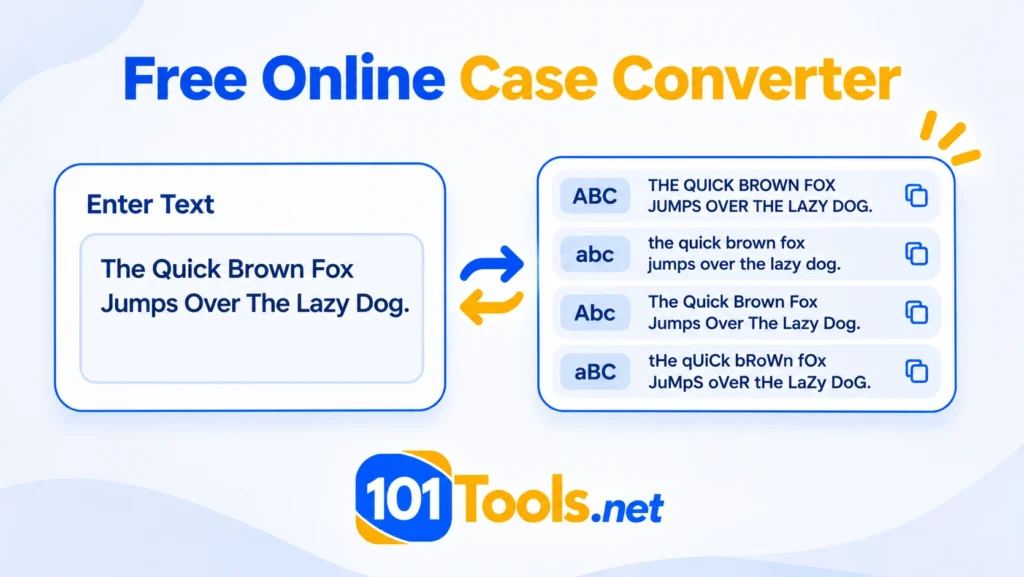
Convert text between uppercase, lowercase, sentence case, title case and other capitalization styles with our free online case converter. Whether you need to fix text typed in capital letters, format headings, or change the appearance of your writing, this tool makes it easy.
Simply enter or paste your text, choose your preferred case style, and get the converted result instantly. No manual editing or retyping required.
Loading tool…
Let us know
How useful was this tool? Your rating helps others find it.
No ratings yet. Be the first!
What Is a Case Converter?
A case converter is an online text formatting tool that changes the capitalization of letters and words without changing their meaning. It helps you transform text from uppercase to lowercase, lowercase to uppercase, sentence case, title case and other writing formats.
Instead of manually editing every word, you can convert an entire paragraph, heading, document or text list in seconds.
A text case converter is useful for students, writers, bloggers, digital marketers, developers and anyone who regularly works with text. It makes formatting faster and helps maintain consistent capitalization across different types of content.
How to Use the Case Converter
Changing text capitalization is simple. Follow these steps:
- Enter or paste your text into the input box.
- Select the capitalization style you want to apply.
- Let the converter transform your text instantly.
- Review the converted text in the result area.
- Copy your formatted text and use it wherever you need.
You can repeat the process with different case styles until you get the desired result.
Different Types of Text Case
Our case converter helps you format text into different capitalization styles. Each format serves a different purpose depending on how you want your text to look.
1. UPPERCASE
Uppercase converts every letter in your text into a capital letter. It is commonly used for headings, short labels, titles and text that needs strong visual emphasis.
Example:
Original: Welcome to 101Tools
Result: WELCOME TO 101TOOLS
2. lowercase
Lowercase converts all capital letters into small letters. It is useful when you want to standardize text, clean up capitalized content or convert text typed with Caps Lock enabled.
Example:
Original: WELCOME TO 101TOOLS
Result: welcome to 101tools
3. Sentence case
Sentence case capitalizes the first letter of a sentence while keeping the remaining text in lowercase, according to standard English capitalization conventions.
It is particularly useful for paragraphs, descriptions, emails, articles and everyday writing.
Example:
Original: WELCOME TO 101TOOLS. CHANGE YOUR TEXT EASILY.
Result: Welcome to 101tools. Change your text easily.
4. Title Case
Title Case capitalizes the main words in a heading or title. It is commonly used for blog titles, article headings, book titles and website page headings.
Example:
Original: the best online tools for everyday tasks
Result: The Best Online Tools for Everyday Tasks
5. Capitalized Case
Capitalized Case converts the first letter of every word into an uppercase letter. Unlike traditional editorial Title Case, it does not necessarily keep short connecting words lowercase.
Example:
Original: free online tools for everyone
Result: Free Online Tools For Everyone
6. aLtErNaTiNg cAsE
Alternating case switches between uppercase and lowercase letters. It is often used for creative text, memes, social media posts and playful messages.
Example:
Original: Welcome to 101Tools
Result: WeLcOmE tO 101tOoLs
7. InVeRsE CaSe
Inverse case reverses the capitalization of each letter. Uppercase letters become lowercase, while lowercase letters become uppercase.
Example:
Original: Welcome To 101Tools
Result: wELCOME tO 101tOOLS
Why Use an Online Text Case Converter?
Manually changing capitalization can take time, especially when working with long paragraphs, multiple headings or large lists of text.
An online text case converter makes the process faster and more convenient.
- Instant conversion: Change text capitalization in seconds without editing each letter individually.
- Multiple formatting styles: Choose the capitalization format that matches your writing requirements.
- Bulk text formatting: Convert longer passages and multiple lines together, subject to your browser’s capabilities.
- Easy to use: No complicated settings or technical knowledge required.
- Free to use: Convert text without paying for a subscription.
- Privacy-focused: Your text is processed directly in your browser and is not uploaded to our servers.
Who Can Benefit From a Case Converter?
A case converter is useful in many everyday and professional situations.
Students and teachers: Format assignments, notes, headings and educational materials without manually changing every letter.
Writers and bloggers: Standardize article headings, blog titles, paragraphs and other written content.
SEO professionals: Format keyword lists, page titles, headings, anchor text and content for consistent presentation.
Digital marketers: Prepare social media captions, advertising copy, product descriptions and marketing materials.
Developers: Format text and identifiers according to programming conventions when the appropriate naming formats are available.
Business professionals: Clean up documents, reports, presentations, emails and other business communications.
Frequently Asked Questions
What is a case converter?
A case converter is a free text formatting tool that changes the capitalization of words and sentences. It can convert text into uppercase, lowercase, sentence case, title case and other capitalization styles without requiring manual editing.
How do I convert uppercase to lowercase?
Paste your capitalized text into the converter and select the lowercase option. All uppercase letters will be converted into lowercase letters instantly. You can then copy the converted text.
How can I change lowercase to uppercase?
Enter your lowercase text into the input box and select UPPERCASE. The converter will change all lowercase letters into capital letters.
Is this case converter free?
Yes. The 101Tools Case Converter is free to use. You can change text capitalization without purchasing a subscription or creating an account.
What is the difference between uppercase and lowercase?
Uppercase letters are capital letters, such as A, B and C. Lowercase letters are small letters, such as a, b and c. Uppercase is commonly used for emphasis and headings, while lowercase is generally used in normal writing.
What is the difference between Title Case and Sentence Case?
Title Case capitalizes the main words in a heading or title, while Sentence Case capitalizes the beginning of a sentence and uses normal capitalization for the remaining text. Title Case is commonly used for headings, whereas Sentence Case is suitable for paragraphs and descriptions.
Can I convert an entire paragraph at once?
Yes. You can paste an entire paragraph into the input area and convert its capitalization in one operation. The amount of text you can process depends on your browser and device.
Does the case converter change the meaning of my text?
No. A case converter changes letter capitalization rather than rewriting or translating your content. However, you should review proper names, abbreviations and technical terms after conversion.
Is my text uploaded to 101Tools?
No. Text conversion takes place directly in your browser. Your input text is not uploaded to our servers, making the tool convenient for formatting personal and professional content.
Do I need to install anything to use this tool?
No. The case converter works directly in your web browser. You do not need to install software or create an account.
Explore More Free Online Tools
101Tools provides a growing collection of free online tools designed to simplify everyday digital tasks.
Explore more tools:
- Fancy Font Generator: Create stylish text for social media profiles, captions and messages.
- Instagram Bio Generator: Create engaging Instagram bios for personal and business profiles.
- Invisible Character Detector: Find hidden Unicode characters and invisible spaces in your text.
- Markdown to Plain Text: Remove Markdown formatting and convert content into clean plain text.
Explore the complete collection on 101Tools and discover more useful tools for everyday work.