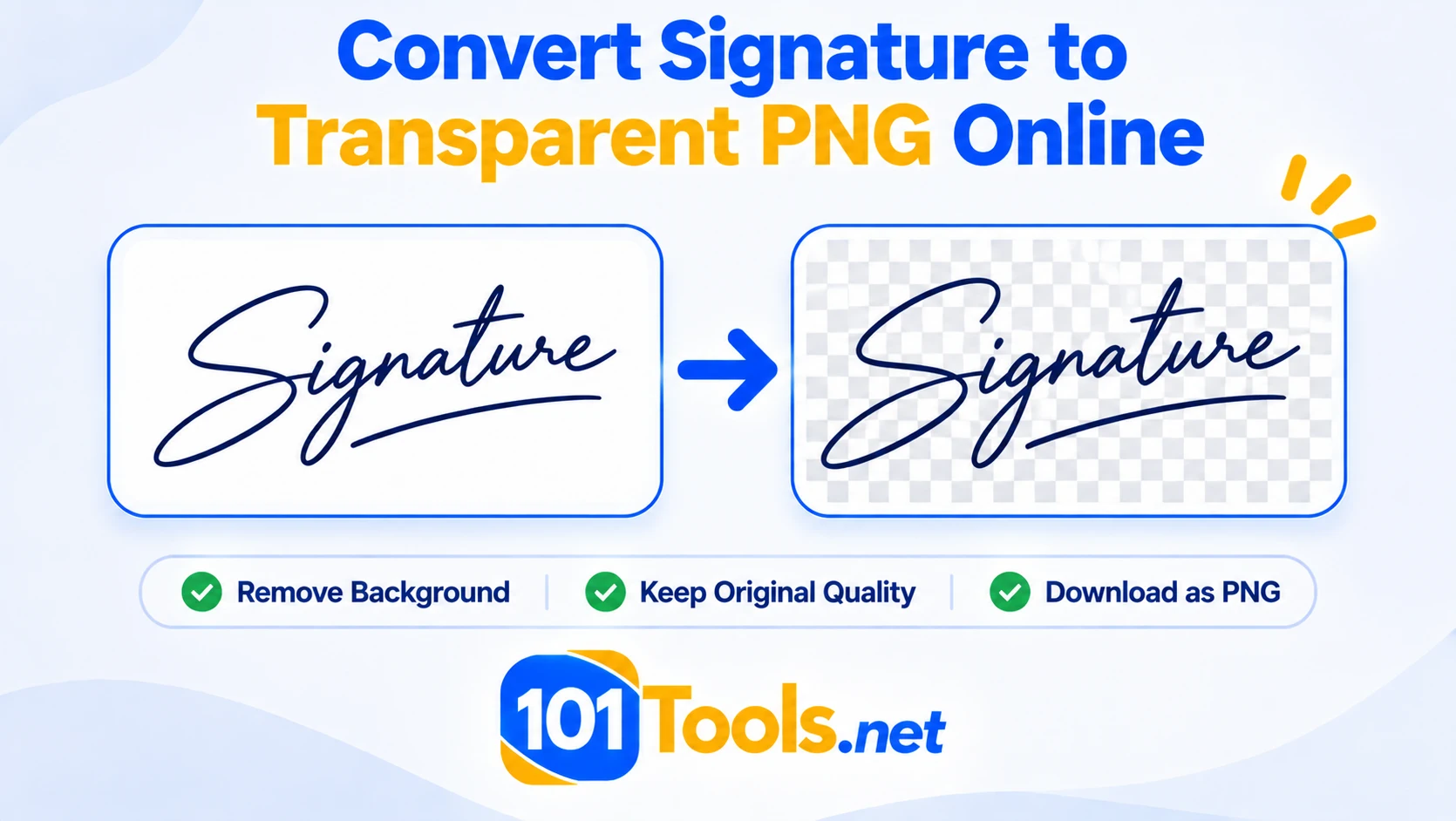
Convert your handwritten signature into a transparent PNG image with the free 101Tools Signature to Transparent PNG tool. Remove the background from scanned or photographed signatures and create clean PNG images that you can use in documents, PDFs and digital files.
Whether you need a transparent signature for a business document, an online application, an agreement or a digital form, this tool makes it easier to prepare your signature without manually editing the image.
Simply upload your signature image, process it using the available background removal options and download your transparent PNG file. Everything runs directly in your browser without uploading your image to our servers.
Loading tool…
Let us know
How useful was this tool? Your rating helps others find it.
No ratings yet. Be the first!
What Is a Transparent Signature PNG?
A transparent signature PNG is an image file containing a handwritten signature without a solid background. Unlike an ordinary JPG image, which typically has a solid background, a transparent PNG can be placed over documents, forms and other digital content without displaying a rectangular white background.
PNG supports transparency, making it a suitable format for digital signatures, handwritten marks, logos and other graphics that need to blend naturally into different backgrounds.
A transparent signature image is particularly useful when you want to insert your handwritten signature into a Word document, PDF, presentation or other digital file.
How to Convert a Signature to Transparent PNG
Creating a transparent signature image is simple with 101Tools.
- Write your signature on a clean white sheet of paper.
- Scan the signature or take a clear photograph.
- Open the Signature to Transparent PNG tool.
- Upload your signature image.
- Process the image using the available background removal controls.
- Preview the result and check the transparency.
- Download your signature as a PNG file.
For the best results, use a clear signature image with good contrast between the ink and the background.
Why Use a Transparent PNG for Your Signature?
A transparent signature image makes it easier to use your handwritten signature across different digital documents.
Here are some common benefits:
- No white background: Place your signature over documents without a visible rectangular background.
- Easy document integration: Insert your signature into Word documents, PDFs and presentations.
- Reusable signature: Save your signature once and use it in different digital workflows.
- Flexible placement: Position your signature over different document backgrounds.
- Professional appearance: Create a cleaner presentation for business correspondence and digital paperwork.
- PNG transparency: Preserve transparent areas when using the image in compatible applications.
Create a Digital Signature PNG from Your Handwritten Signature
A handwritten signature can be converted into a digital image for use in electronic documents and business workflows.
Instead of repeatedly printing, signing and scanning documents, you can prepare a transparent PNG version of your handwritten signature and insert it into documents when appropriate.
This is useful for:
Business documents: Prepare a reusable signature image for routine business correspondence and internal documents.
Word documents: Insert your transparent signature into Microsoft Word files, letters and reports.
PDF documents: Place a signature image into PDF documents using compatible PDF editing software.
Online applications: Prepare a signature image for upload to forms and portals that accept PNG files.
Digital paperwork: Use a transparent signature image in documents that require a handwritten signature representation.
Note that an image of a handwritten signature is not the same as a cryptographically verified digital signature or legally authenticated electronic signature. Follow the applicable signing requirements for important documents.
How to Make Your Signature Background Transparent
The quality of your original signature image plays an important role in the final result.
Follow these tips when preparing your signature:
1. Use a Clean White Background
Write your signature on plain white paper. Avoid lined paper, colored backgrounds and textured surfaces because they can make background removal more difficult.
2. Use Dark Ink
Black or dark blue ink generally provides good contrast against white paper. This helps separate the signature from its background.
3. Take a Clear Photograph
If you are using a mobile phone camera, ensure that the image is sharp and properly illuminated. Avoid shadows, glare and reflections.
4. Keep the Signature Within the Image
Make sure the complete signature is visible and not cut off at the edges. Leave a little space around the handwritten marks.
5. Review the Transparent Result
After processing, check the signature carefully. Look for unwanted background marks, missing strokes and remaining white areas.
A good transparent signature should preserve the original handwriting while removing the unwanted background.
Why Is PNG Better for Transparent Signatures?
PNG is a popular image format for signatures because it supports transparency.
When you save a signature as a JPG, transparent areas cannot be preserved in the same way. JPG images typically use a solid background, which may appear as a white rectangle when inserted into another document.
PNG supports transparent pixels, allowing the signature to appear naturally over different backgrounds.
This makes PNG particularly useful for:
- Handwritten signatures
- Digital document graphics
- Company logos
- Stamps and seals
- Scanned illustrations
- Transparent design elements
Common Uses of Transparent Signature Images
Microsoft Word: Insert your transparent signature into letters, agreements and business documents.
PDF files: Add your signature image to PDF documents using compatible PDF editing tools.
Business correspondence: Prepare signature images for routine letters and reports.
Freelancing and remote work: Use signature images in documents where image-based signatures are accepted.
Educational applications: Prepare signature images for online forms and document submissions.
Office administration: Maintain reusable signature image files for appropriate document workflows.
Transparent Signature PNG vs JPG
PNG and JPG are two commonly used image formats, but they handle transparency differently.
PNG: Supports transparent backgrounds and is generally more suitable for handwritten signatures that need to be placed over other documents.
JPG: Does not support transparent backgrounds in the standard format. It is suitable for ordinary photographs but less convenient for reusable transparent signatures.
If your goal is to place a handwritten signature over a document without a white rectangular background, PNG is generally the better choice.
Why Use the 101Tools Signature to Transparent PNG Converter?
101Tools provides a convenient way to prepare transparent signature images without installing desktop image-editing software.
- Free online tool: Convert signature images directly through your browser.
- Transparent PNG output: Prepare signature images with transparent backgrounds.
- Simple workflow: Upload, process, preview and download.
- Document-ready images: Prepare signatures for compatible Word and PDF workflows.
- Browser-based processing: Your signature image is processed locally and is not uploaded to our servers.
- Convenient access: Use the tool whenever you need to prepare a transparent signature image.
Frequently Asked Questions
How do I convert my signature to a transparent PNG?
Upload your handwritten signature image to the 101Tools Signature to Transparent PNG tool. Process the image using the available background removal options, review the result and download the transparent PNG.
How can I create a PNG signature?
Write your signature on white paper, take a clear photograph or scan it, and use a signature background removal tool to create a transparent PNG image.
How do I remove the white background from my signature?
Upload your signature image to the converter and use its background removal functionality. The tool processes the image to remove the unwanted background while retaining the handwritten signature.
Why should I use a transparent signature PNG?
A transparent PNG allows you to place your handwritten signature over documents, PDFs and other digital content without displaying a solid rectangular background.
Can I use a transparent signature in Microsoft Word?
Yes. You can insert a transparent PNG signature into Microsoft Word documents using the image insertion feature.
Can I add a transparent signature to a PDF?
Yes. You can insert a transparent PNG signature into a PDF using compatible PDF editing software that supports image placement.
Is PNG better than JPG for signatures?
PNG is generally better for reusable signature images because it supports transparency. JPG does not preserve transparent backgrounds in the standard format.
Can I create a transparent signature from a scanned image?
Yes. A scanned handwritten signature can be processed to remove its background and create a transparent PNG, provided the image has sufficient contrast and quality.
Can I use my transparent signature on any document?
You can insert a signature image into many digital documents, but whether an image-based signature is accepted depends on the document type, platform and applicable signing requirements.
Is a PNG signature the same as an electronic signature?
No. A PNG signature is an image of a handwritten signature. An electronic signature can involve different signing methods, authentication and verification processes. A transparent signature image alone does not provide cryptographic identity verification.
Is the 101Tools Signature to Transparent PNG tool free?
Yes. You can use the tool online without purchasing a subscription or installing additional software.
Is my signature image uploaded to a server?
No. Image processing takes place directly in your browser. Your signature image is not uploaded to 101Tools servers.
Explore More Free Image Tools
Discover more image utilities from 101Tools to simplify your everyday digital tasks.
- Image Compressor: Reduce JPG, PNG and WebP image sizes for websites and documents.
- Compress Image to KB: Reduce image file sizes to specific KB targets for online applications.
- Passport Photo Maker: Prepare passport and visa photographs in different dimensions.
- Blur and Censor Image: Blur or hide sensitive information in images before sharing.
Visit 101Tools to explore more free online tools for image editing, document preparation and everyday productivity.