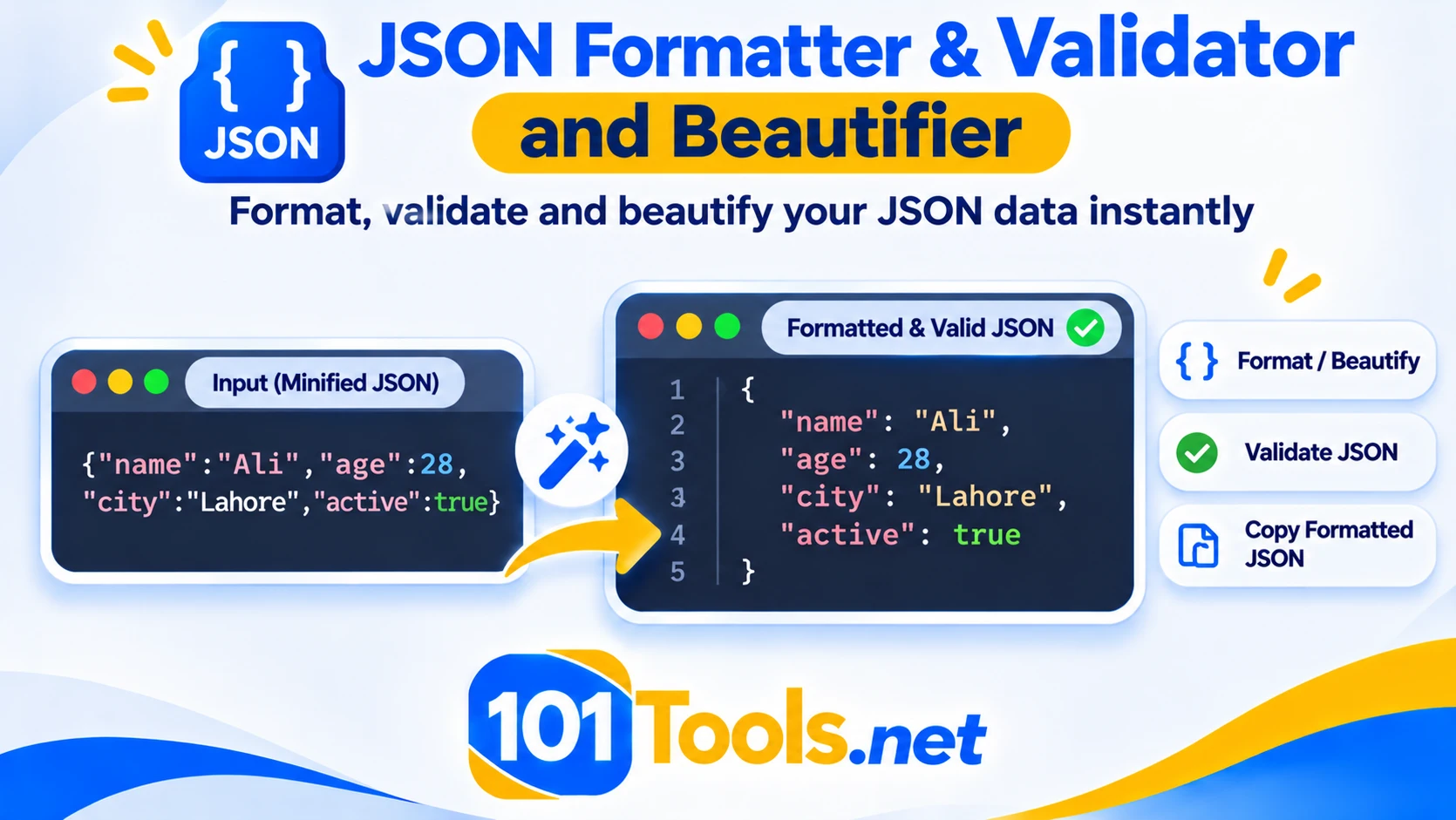
Format, beautify and validate JSON data instantly with the free online JSON Formatter from 101Tools. Make complicated JSON structures easier to read, organize nested objects and arrays, and check your JSON syntax for errors.
Whether you are working with API responses, configuration files, application data or developer-generated JSON, this online JSON Beautifier helps you transform unformatted data into a clean, readable structure.
Paste your JSON into the editor, format it with proper indentation or validate its syntax to check whether it is valid. Everything runs directly in your browser, without requiring software installation or an account.
Loading tool…
Let us know
How useful was this tool? Your rating helps others find it.
No ratings yet. Be the first!
What Is a JSON Formatter?
A JSON Formatter is an online developer tool that organizes JavaScript Object Notation (JSON) data into a structured and readable format.
JSON is commonly used to exchange information between applications, websites, APIs and servers. However, JSON data is often received as a single line of text without spaces or indentation, making it difficult to understand.
A JSON formatter solves this problem by adding appropriate indentation, line breaks and spacing to organize objects, arrays and nested values.
The 101Tools JSON Formatter also includes validation functionality to help identify syntax errors and check whether your JSON data follows the correct JSON structure.
Format and Beautify JSON Online
Unformatted JSON can be difficult to read, particularly when it contains deeply nested objects, arrays and large amounts of data.
With the 101Tools JSON Beautifier, you can convert compact JSON into a properly structured format with consistent indentation.
Formatting makes it easier to:
- Read nested JSON objects and arrays.
- Understand complex data structures.
- Review API responses.
- Find individual properties and values.
- Debug JSON used in applications.
- Work with configuration and data files.
Simply paste your JSON into the editor and use the formatting option to generate a readable version.
Validate JSON and Check Syntax
JSON data must follow specific syntax rules to be processed correctly by applications and APIs.
A missing comma, incorrect quotation mark, unmatched bracket or improperly formatted value can make an entire JSON document invalid.
The 101Tools JSON Validator checks your input by parsing it according to JSON syntax rules.
It helps you identify common formatting problems, including:
- Missing commas between properties.
- Incorrect quotation marks.
- Unclosed objects or arrays.
- Missing colons between keys and values.
- Invalid trailing commas.
- Incorrect JSON value syntax.
- Unexpected characters.
If your JSON contains a syntax error, review the validation message and correct the problem before using the data in your application.
How to Use the JSON Formatter
Formatting and validating JSON with 101Tools is simple.
- Copy your JSON data from an API response, application, configuration file or another source.
- Paste the content into the JSON editor.
- Select the formatting option to beautify your JSON.
- Review the indentation and structure of the formatted output.
- Use the validation option to check whether your JSON syntax is valid.
- Copy the formatted JSON for use in your project.
You can format and validate JSON directly in your browser without installing a separate developer application.
JSON Pretty Print and Indentation
JSON Pretty Print is another name for formatting JSON with proper spacing, indentation and line breaks.
Compact JSON is useful for data transmission and storage, but it can be difficult for developers to inspect manually.
Pretty-printed JSON separates individual properties and nested structures onto readable lines.
For example, compact JSON:
{"name":"John","role":"Developer","skills":["HTML","CSS","JavaScript"]}Formatted JSON:
{
  "name": "John",
  "role": "Developer",
  "skills": [
    "HTML",
    "CSS",
    "JavaScript"
  ]
}
The formatted version makes the relationship between objects, properties and arrays easier to understand.
Use the 101Tools JSON Pretty Printer to organize your data and improve readability when working with complex JSON structures.
JSON Formatter for Developers
JSON is widely used in modern software development, particularly when applications communicate through APIs or exchange structured data.
A JSON formatter helps developers inspect, review and troubleshoot data without manually adding indentation or line breaks.
Common developer use cases include:
API Development: Format JSON responses received from REST APIs to inspect properties, nested objects and returned values.
Debugging: Make complex JSON structures easier to examine when investigating application errors or unexpected API responses.
Configuration Files: Organize JSON configuration files so that application settings and nested properties are easier to review.
Web Development: Format JSON data used in JavaScript applications, frontend development and backend integrations.
Database and Data Processing: Inspect structured JSON records and review data before using it in applications or processing workflows.
Testing and Development: Validate JSON payloads before sending them to APIs or integrating them into software projects.
JSON Formatter vs JSON Beautifier vs JSON Validator
These terms describe related but slightly different JSON operations.
JSON Formatter
A JSON formatter organizes JSON data with consistent indentation, spacing and line breaks. It makes compact or unformatted JSON easier to read.
JSON Beautifier
A JSON beautifier performs the same general task as a formatter by presenting JSON data in a clean and structured layout.
JSON Validator
A JSON validator checks whether the supplied data follows valid JSON syntax. It identifies parsing errors that may prevent applications from processing the data.
The 101Tools JSON Formatter & Validator combines these essential operations in one convenient online utility.
Common JSON Formatting Errors
JSON follows strict syntax rules. Even a small mistake can prevent a document from being parsed correctly.
Here are some common issues to check when working with JSON.
Missing Commas
Properties inside JSON objects must be separated using commas. Missing separators can cause parsing errors.
Incorrect Quotation Marks
JSON property names and string values must use double quotation marks. Single quotation marks are not valid JSON string delimiters.
Unmatched Brackets
Every opening curly brace or square bracket must have a corresponding closing bracket.
Trailing Commas
JSON does not allow an additional comma after the final property in an object or the final element in an array.
Incorrect Property Separators
JSON uses a colon between a property name and its value. Replacing it with another character makes the structure invalid.
Using a JSON Validator helps identify these issues before the data is used in an application.
Why Use the 101Tools JSON Formatter?
The 101Tools JSON Formatter provides a straightforward way to format and validate structured data without installing additional software.
- Free online JSON formatting: Format JSON directly in your browser.
- JSON beautifier: Organize unformatted JSON with readable indentation.
- JSON validation: Check JSON syntax and identify invalid structures.
- Pretty printing: Add line breaks and spacing to nested objects and arrays.
- Developer-friendly: Useful for API responses, configuration files and application data.
- Easy to use: Paste your JSON and format it without complicated setup.
- Browser-based processing: Your JSON data is processed locally in your browser and is not uploaded to 101Tools servers.
Frequently Asked Questions
What is a JSON formatter?
A JSON formatter is a tool that organizes JSON data using proper indentation, line breaks and spacing. It makes structured data easier to read, inspect and maintain.
How do I format JSON online?
Copy your JSON data, paste it into the 101Tools JSON Formatter and use the formatting option. The tool organizes your JSON into a readable structure.
What is the difference between JSON formatting and JSON beautifying?
JSON formatting and beautifying generally describe the same process. Both organize JSON data with consistent indentation and spacing to improve readability.
How do I validate JSON online?
Paste your JSON into the 101Tools JSON Validator and run the validation process. The tool checks whether the input follows valid JSON syntax and reports parsing errors.
Why is my JSON invalid?
JSON can become invalid because of missing commas, incorrect quotation marks, unmatched brackets, trailing commas or incorrect property separators. A JSON validator helps identify these syntax problems.
What is JSON Pretty Print?
JSON Pretty Print is the process of displaying JSON with proper indentation, line breaks and spacing instead of keeping the entire structure on one line.
Can I format large JSON files?
The tool processes JSON locally in your browser. The practical size limit depends on your browser, available memory and device performance.
Is JSON Formatter the same as JSON Validator?
No. A formatter organizes JSON data for readability, while a validator checks whether the JSON follows the required syntax rules. Both operations are useful when working with structured data.
Is JSON Formatter free to use?
Yes. The 101Tools JSON Formatter is free to use online without requiring a paid subscription or software installation.
Can I use a JSON formatter for API responses?
Yes. Developers commonly use JSON formatters to organize API responses, inspect nested data and review returned properties and values.
Does the JSON Formatter modify my original data?
Formatting changes the presentation of JSON by adding indentation and whitespace. It should preserve the underlying JSON values and structure.
Is my JSON data uploaded to a server?
No. The 101Tools JSON Formatter processes your input directly in your browser. Your JSON content is not uploaded to 101Tools servers.
Explore More Free Developer Tools
Discover more useful online utilities from 101Tools for working with structured data, programming and content formatting.
- AI Table to Excel & CSV: Extract tables from Markdown and AI-generated responses and export them as spreadsheets.
- Code Block Extractor: Extract and organize multiple programming code blocks from text and AI responses.
- Markdown Text Formatting: Convert Markdown content into clean, readable plain text.
- AI Text Cleaner: Remove unwanted formatting and text artifacts from AI-generated content.
- Case Converter: Convert text into uppercase, lowercase, sentence case and title case.
Visit 101Tools.net to explore more free online tools for developers, writers and everyday productivity.